
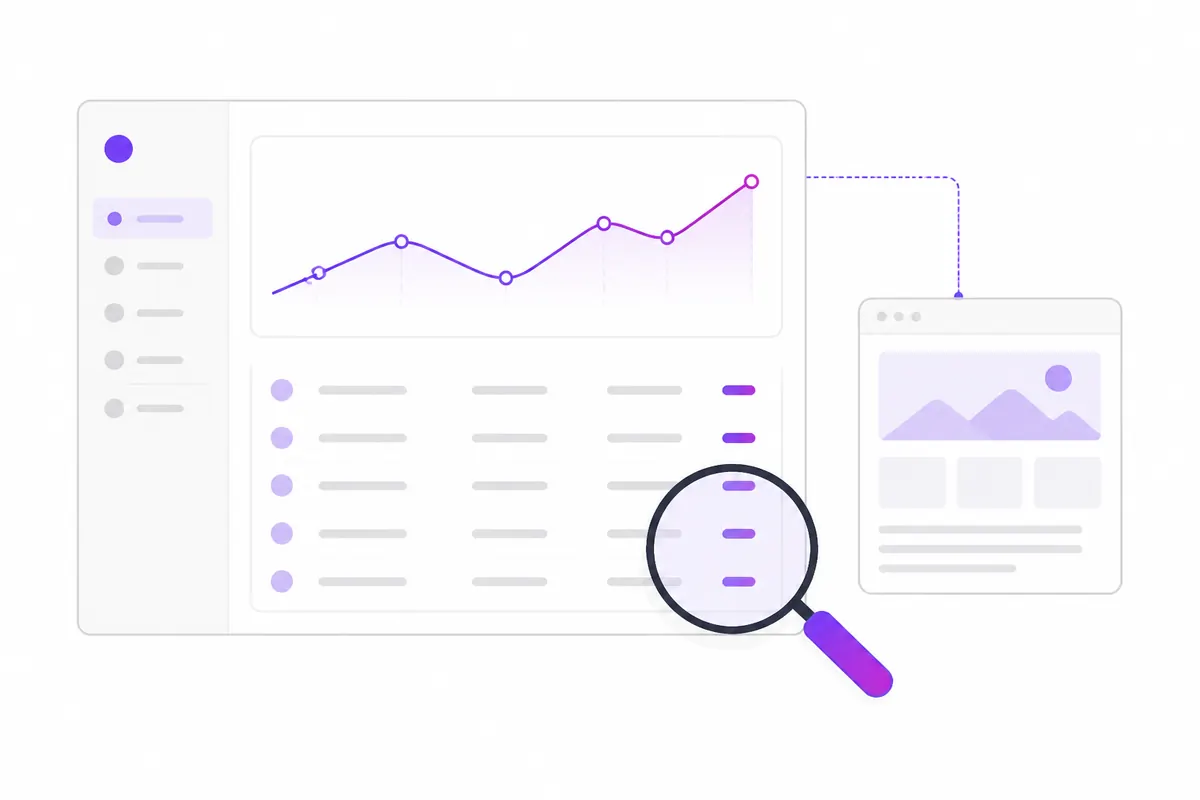
Google Search Console is Google’s free tool that shows how your site performs in Google Search: which searches you appear for, which pages are indexed, and what is stopping the others. You only need a handful of reports to get real value from it: Performance, Pages, URL inspection and Sitemaps.
Step 1: add and verify your site
Go to Search Console, sign in with a Google account and add a property. There are two types:
| Property type | Covers | How you verify |
|---|---|---|
| Domain | Every subdomain and both http and https, e.g. all of example.com | A TXT record in your DNS |
| URL prefix | Only URLs starting with that exact address, e.g. https://www.example.com/ | HTML file, meta tag, Google Analytics, Google Tag Manager or DNS |
A Domain property is usually the better choice, because it sees everything. If you can’t edit DNS, a URL-prefix property is fine; just make sure the prefix matches the version of your site people actually visit.
Keep the verification file or tag in place. If you remove it, you lose access.
The Performance report
This is the report you will use most. Open Performance → Search results. It shows four numbers:
- Clicks: how often someone clicked through to your site.
- Impressions: how often a link to your site appeared in results the searcher could see.
- CTR: clicks divided by impressions.
- Average position: the average top position of your site for those searches. Lower is better.
Below the chart are tabs for Queries, Pages, Countries, Devices, Search appearance and Dates. Click a query, then the Pages tab, to see which page ranks for it.
Useful things to look for
- High impressions, low CTR: people see you but don’t click. Rewrite the page’s title and meta description so they match what the searcher wants.
- Average position 11–20: you are on page 2. These are your quickest wins; see striking-distance keywords.
- Two pages swapping for the same query: a sign of keyword cannibalisation, where your own pages compete with each other.
Know the limits
- Data usually appears with a delay of about two days. A 24-hour view exists for recent trends, but treat it as provisional.
- The report keeps 16 months of history. If you want longer, export it regularly.
- Some very rare queries are hidden for privacy, so the query rows won’t add up to the total.
- Clicks from Google’s AI features, such as AI Overviews, are counted inside normal web search figures rather than reported separately.
The Pages (indexing) report
Open Indexing → Pages. It splits your known URLs into Indexed and Not indexed, with a reason for each group. Common reasons:
- Crawled – currently not indexed: Google fetched the page and chose not to index it yet. Often a quality or duplication signal.
- Discovered – currently not indexed: Google knows the URL but hasn’t crawled it yet.
- Alternate page with proper canonical tag: fine, this is a duplicate pointing to the main version.
- Duplicate without user-selected canonical: Google found duplicates and you didn’t say which one is main. See canonical tags.
- Excluded by ‘noindex’ tag: correct if intended, a problem if not.
- Blocked by robots.txt, Not found (404), Soft 404, Page with redirect.
Not every “Not indexed” URL is a problem. Redirects, filtered URLs and intentional noindex pages belong there. Focus on pages you want in Google. If an important page is missing, work through why a page isn’t on Google.
URL inspection
Paste any URL from your site into the search bar at the top. You get:
- Whether the page is on Google, and when it was last crawled.
- The canonical Google picked, compared with the one you declared.
- Whether the page is in a sitemap, and whether crawling and indexing were allowed.
Click Test live URL to fetch the page now. The live test uses Google’s inspection crawler, which shows up in your logs as Google-InspectionTool. You can view the rendered HTML and a screenshot, which is handy for checking that content built with JavaScript actually appears.
Request indexing asks Google to recrawl the page. Use it for new or significantly changed pages. There is a daily limit, and it doesn’t guarantee indexing, so don’t click it repeatedly.
Sitemaps
Open Indexing → Sitemaps, enter your sitemap URL (for example sitemap.xml) and submit. Search Console then shows whether it could read the file and how many URLs it found.
A sitemap helps Google discover pages; it doesn’t force them into the index. Keep it to canonical, indexable URLs that return 200.
Other reports worth a glance
- Core Web Vitals: field data for LCP, INP and CLS, grouped by similar URLs. Needs enough real Chrome visitors to show data.
- HTTPS: pages not served securely.
- Manual actions: check once in a while. Ideally it says no issues detected.
- Security issues: hacked content or malware warnings.
A simple weekly routine
- Performance: compare the last 28 days with the previous period. Note big movers.
- Pages: check that the number of indexed pages hasn’t dropped unexpectedly.
- Inspect any new important page you published.
- Check Manual actions and Security issues, once a month is enough.
If you prefer one place for all your Search Console queries, OZMAICO’s SEO → Keywords view reads them from your connected property and groups them into views such as “Almost page 1” (positions 11–20), “Pages competing” and “Questions”. Create a free account to try it.
In short
- Verify a Domain property if you can.
- Performance tells you what you rank for; data lags about two days and goes back 16 months.
- Pages tells you what is indexed and why the rest isn’t.
- URL inspection checks a single page and lets you request indexing.
- Sitemaps help discovery; submit one and keep it clean.
Check your own website
See which AI bots really visit your site — real or fake, page by page — and how many people AI assistants send you. Free.